Fixing Button Interactions on the Web
Feb 06, 2026
The web was created before touch devices were widespread, so web APIs are designed around mouse events such as click, hover, and scroll.
When touch devices arrived, browsers added touch support by emulating mouse events, allowing taps to trigger events like onClick without breaking existing sites.
Touch input also introduced gestures such as double-tap to zoom. So browsers now had to decide whether a tap was a complete action or the start of a gesture. To make that distinction, many browsers, especially older ones, added a short delay (historically around 300 ms1) before firing emulated mouse events.
This emulation and delay show up as several user-facing issues in the most fundamental interactive element: the button.
Text shouldn’t be selectable on buttons
On mobile devices, long-pressing a default button begins text selection. However, users don’t expect text selection to start while pressing a button.
Press and hold the text on the button with your finger; you'll start selecting the text.
This breaks immersion, distracts from the press itself, and makes the interaction feel more like a web page than an app.
user-select: none CSS property to the button could be an option, but even with that added, Safari still tries to select nearby elements2.Press feedback should be clear
Users expect clear visual feedback when pressing a button. On the web, this is commonly handled using the :active pseudo-selector in CSS.
However, this selector is affected by the mouse event emulation we just talked about3.
Notice how the button stays highlighted even after you drag your finger off. This makes it seem like it’ll activate when you lift your finger.
Native buttons don’t behave this way, which makes the interaction feel inconsistent and untrustworthy.
Hover is unreliable on touch devices
Hover is a mouse-only interaction, but it still gets triggered on touch devices through event emulation4.
Depending on the browser, the :hover pseudo-class may never match, flash briefly after a touch, or remain active long after the interaction ends.
On Chromium browsers, hover can become “sticky” and behave more like focus. The MDN documentation explicitly warns against relying on :hover for touch interactions.
Keyboard input is inconsistent
These inconsistencies aren’t limited to touch; keyboard interactions show similar edge cases in default buttons.
Buttons can be pressed using the Enter or Space keys, but default buttons handle them differently.
Focus the button below and hold down the Enter key, then the Space key, and watch how the counter behaves.
Notice that holding down the Enter key repeatedly fires the onClick event, but the spacebar only fires it when released. This behavior is useful in text inputs, but not for buttons.
Focus rings should adapt to input
To add a visual affordance for the currently focused element, we commonly use the focus-visible CSS selector. However, the focus ring can remain visible even after the user switches to a pointer.
When the user is clearly using a pointer, keeping the focus ring visible adds little value and becomes distracting.
Individually, these issues may appear harmless. However, taken together, they point to a deeper problem: the default button inherits browser behaviours that were never designed to feel native across input types. This realization sets the stage for exploring how we can address these shortcomings.
Browser defaults are not enough
As we’ve seen, CSS alone isn’t enough. Mouse event emulation causes selectors like :active, :hover, and :focus-visible to behave inconsistently across devices. Browsers’ built-in APIs don’t solve this either, because they are affected by the same emulation.
We need to normalize button behavior across browsers and input types while ignoring emulated mouse events on touch devices.
Doing this correctly requires handling edge cases across pointer, keyboard, touch, and assistive technologies; consistently, across browsers.
A normalized interaction layer
We don’t need to build this layer ourselves. React Aria provides a set of headless components that normalize interactions across input types and platforms.
Its Button component handles these interaction details internally. Since it’s headless, it doesn’t include any styles. So you can customize its look however you want.
Normalizing interactions with React Aria
- Install
react-aria-components.
npm i react-aria-components- Import the
Buttonand use it.
"use client";

import { Button as RacButton } from "react-aria-components";
import { LuMousePointerClick } from "react-icons/lu";

export default function ButtonDemo() {
  return (
    <RacButton className="relative inline-flex h-10 items-center gap-1.25 rounded-full bg-[#EFEFEF] px-3.5 font-medium text-[0.9rem] text-black/87 leading-none md:h-8 md:px-3 dark:bg-[#1C1C1E] dark:text-white/85">
      <LuMousePointerClick className="-ml-px" size={17} /> Press
    </RacButton>
  );
}
This Button is built on top of low-level hooks like usePress and useHover, which normalize pointer, keyboard, touch, and screen-reader interactions.
- They prevent text selection on mobile.
- Ignore emulated mouse events on touch devices.
- Handle screen reader virtual clicks.
- Falls back to mouse and touch events when pointer events are unavailable.
Client Boundary Required
Button relies on React hooks and must be used as a client
component. If you’re using Next.js or React Server Components, add the "use client" directive at the top of the file.Fixing text selection
React Aria temporarily adds user-select: none to the page when a press starts, and removes it after a short delay. So we don’t have to manage this manually in most cases.
However, this only kicks in once a press interaction is detected. In some edge cases, such as quickly dragging from the rim of the button, text selection can still occur before React Aria has time to apply the style.
For that reason, I’d still recommend adding user-select: none directly to the button as a baseline. React Aria then acts as a safety net, preventing nearby elements from being selected.
Replacing selectors with interaction states
React Aria exposes interaction states as data attributes. Because they’re triggered by internal hooks, these states are not affected by mouse event emulation and rely on unified press events.
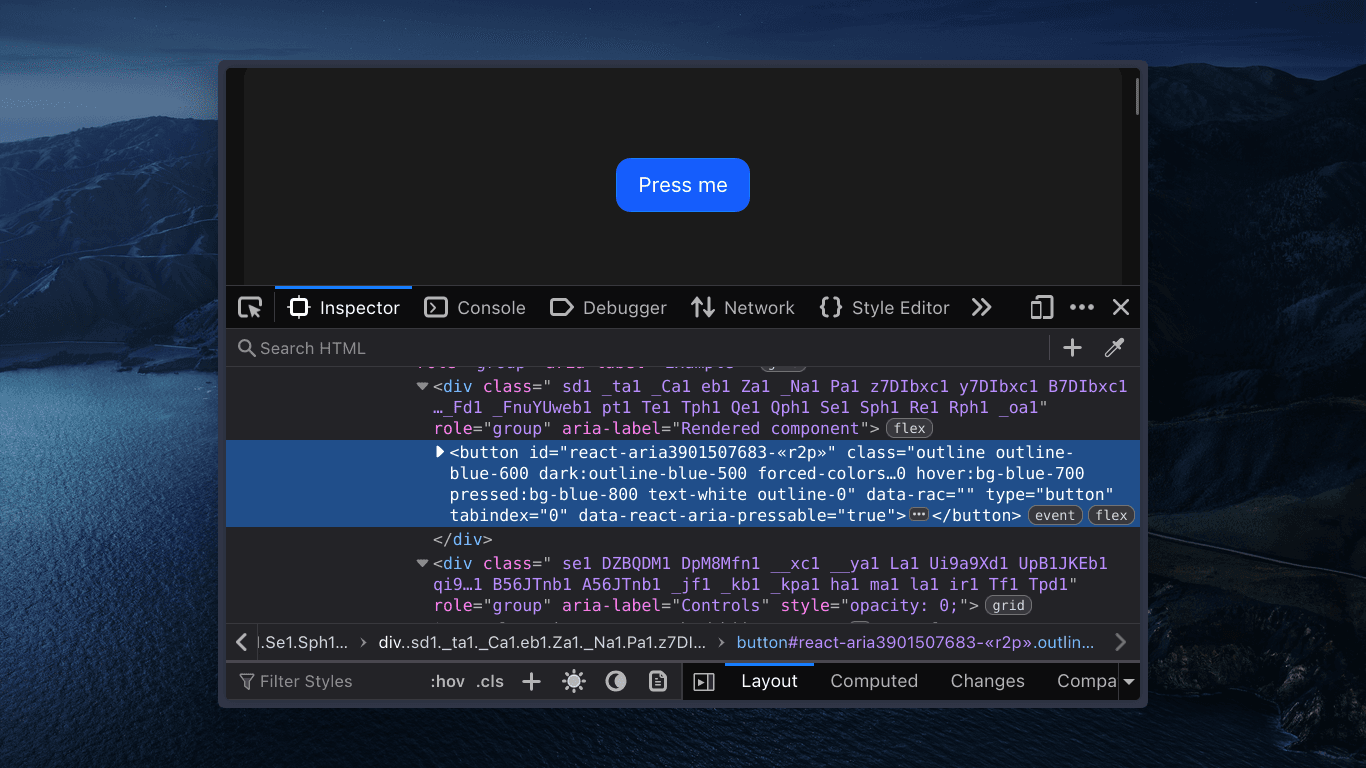
We can target these attributes in CSS selectors and style the button accordingly.
className =
  "data-pressed:scale-97 data-hovered:bg-[#E4E4E4] data-pressed:bg-[#F4F4F4] dark:data-hovered:bg-[#2B2B2D] dark:data-pressed:bg-[#3A3A3C]"
Using the data-pressed attribute instead of the :active selector ensures the pressed state is shown only while the user is actually interacting with the button.
This gives users a clear indication of whether the button will activate when released.
Ignoring repeated keyboard events
Unlike the default button, React Aria ignores repeated keyboard events. This ensures that Enter and Space behave consistently and do not repeatedly fire the onPress event.
Try holding each key separately and observe how the counter updates.
Use onPress instead of onClick
onPress is normalized to support all interaction methods equally. onClick is an alias for onPress, provided for compatibility only, and should be avoided.
If your app relies on lower-level events (for example, onPointerUp or onMouseEnter), use the supported event props listed in the documentation.
Hiding the ring on pointer interaction
React Aria attaches global event listeners to the document and tracks the most recent input modality.
If the user most recently interacted with a keyboard or assistive technology, the data-focus-visible attribute is set to true.
className =
  "outline-0 data-focus-visible:ring-3 data-focus-visible:ring-blue-600"
Using this attribute instead of the focus-visible selector, we can show the ring only when the button receives keyboard focus and hide it when the user interacts with a mouse or touch.
Each fix we applied solves a specific problem. Instead of reapplying these fixes every time, we can package them into a single reusable button component.
A reusable button component
This component follows the same pattern as shadcn/ui. Install react-aria-components, copy the component into , add the styles to , and use it directly in your app.
About the asChild prop
asChild pattern. Handling polymorphic rendering requires additional considerations and is outside the scope of this article. For details, refer to the docs.At this point, the button is functionally complete. It behaves correctly across input types and meets our accessibility goals.
However, behavior is only half of what users perceive. Animation is the other half.
Why aren't CSS transitions enough?
In the demo above, tapping and quickly releasing the button does not trigger the press animation. The data-pressed state turns off almost immediately, so the CSS transition never has time to run.
As a result, users get little to no visual feedback. This makes it harder to tell whether the button was actually pressed, especially during fast interactions.
Using animation libraries
Because the press state switches too quickly, a CSS transition is not enough. We need an animation that starts when the press begins and finishes even if the press ends immediately.
This is an event-driven animation. CSS can’t listen to JavaScript events like onPressStart and onPressEnd, so we need an animation library.
There are many options, but in this article, we’ll use Motion because it integrates well with React.
Get started with the animation
- Install the
motionpackage.
npm i motion- Then trigger animations with the
useAnimatehook.
import { useAnimate } from "motion/react-mini";

const [scope, animate] = useAnimate();

// Press start animation
const animatePressStart = (): void => {
  animate(
    scope.current,
    { scale: 0.97, backgroundColor: "#3A3A3C" },
    { duration: 0 },
  );
};

// Press end animation
const animatePressEnd = (): void => {
  animate(scope.current, {
    scale: 1,
    backgroundColor: "#1C1C1E",
  });
};<RacButton
onPressEnd={animatePressEnd}
onPressStart={animatePressStart}
ref={scope}
/>We’ll trigger the pressed animation immediately when the press starts and animate back to the idle state when the press ends.
{duration: 0} stops any previously running animation and applies the pressed style immediately, without any animation. This is required to flash the button when pressed and run the complete animation when released. This way, users receive immediate visual feedback, even when they release the button too quickly.
Using variables to animate
Motion animates an element by setting inline styles directly onto it. Inline styles have the highest priority in CSS, so once Motion sets a value, component styles can no longer override it.
Because of this, a class like bg-[#EFEFEF] only works until the first animation runs. Once Motion updates the inline background-color, your utility classes can no longer take effect.
To avoid this, we don’t animate the color itself and animate a variable instead.
Think of it as splitting responsibilities:
- CSS variables determine the color to be used (default, hover, pressed).
- Motion animates between those variables.
Because Motion can interpolate CSS variables, this keeps animations smooth while preserving state-driven styling.
So we move the background color into a variable and animate that variable:
const animatePressStart = (): void => {
  animate(
    scope.current,
    { scale: 0.97, backgroundColor: "#3A3A3C" },
    { scale: 0.97, backgroundColor: "var(--button-highlight)" },
    { duration: 0 },
  );
};
const animatePressEnd = (): void => {
  animate(scope.current, {
    scale: 1,
    backgroundColor: "#1C1C1E",
    backgroundColor: "var(--button-background)",
  });
};<RacButton
className={cn(
// Variant
"bg-ui-blue text-white/93 transition-all data-pressed:scale-97 data-hovered:bg-[color-mix(in_oklab,var(--ui-blue),white_5%)] data-pressed:bg-[color-mix(in_oklab,var(--ui-blue),white_14%)]"
"bg-(--button-background) text-white/93 [--button-background:var(--ui-blue)] [--button-highlight:color-mix(in_oklab,var(--ui-blue),white_14%)] data-hovered:bg-[color-mix(in_oklab,var(--button-background),white_5%)]"
className,
)}
/>Now, because we’re using variables, changing the color from outside the button is as easy as setting a variable. This way, we don’t have to modify the internal API of the button itself. The animation, hover, and active states will all get taken care of.
<Button className="[--button-highlight:#33A0FF] [--button-background:#0088FF]" />
Finally, a copy-paste button component
As usual, this component follows the same architecture as ShadCN.
Install react-aria-components and motion, copy-paste this code into , and use it directly in your app.
At this point, the button is complete and can serve as a solid foundation for building higher-level components.
Buttons concentrate a wide range of input behaviors, such as pointer, keyboard, and touch, into a very small surface area. When those interactions behave predictably, users stop thinking about the interface itself and focus on the action they’re taking.
Getting these details right is often what makes a web interface feel deliberate and native.
This article is heavily inspired by prior work and discussions from the React Aria and React Spectrum teams, as well as community write-ups on input modality, press interactions, and accessibility on the web, particularly Sam Selikoff’s video on building better button interactions.
Footnotes
-
Historically, browsers introduced a ~300 ms delay to detect double-tap gestures for zooming. Modern browsers have mostly removed this delay, but its effects still shape how interaction events behave today. See: 300ms Tap Delay Gone Away. ↩
-
Ongoing interoperability issues in Safari have been documented in browser discussions and community reports. See: User Select interoperability, a related Reddit thread, and the CSS-Tricks overview. ↩
-
This behavior is a known limitation of relying on
:activefor touch interactions. It’s discussed in detail by the React Spectrum team in Building a Button, Part 1, with additional context in MDN’s notes on active state behavior on touch devices. ↩ -
The React Spectrum team documents these hover inconsistencies in detail as part of their button interaction research. See their discussion on hover interactions. ↩